How to Download Your Blinko QR Sticker Design
Download your Blinko QR code sticker from the business portal, then pick the right size and format to print and display at your counter.
Blinko Team
Blinko Local
Your Blinko sticker is one of the most powerful tools you've got for growing your customer base. Every person who walks past your door is a potential customer. A well-placed QR sticker is how they connect, in about two seconds, with no typing required. This guide walks you through downloading your design and getting it print-ready.
What is the Blinko sticker?
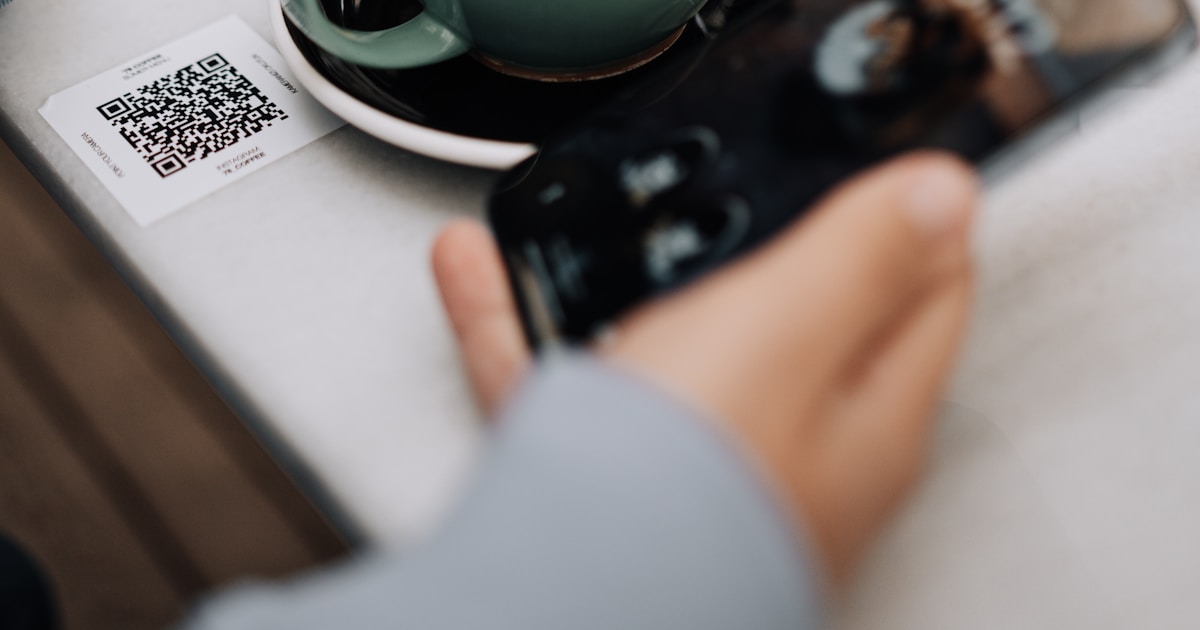
When a customer scans your QR code, they land directly on your business profile in the Blinko app. One tap and they're following your business, earning rewards on every visit. No account creation. No email address. No friction.
The sticker is generated specifically for your business: the QR code embedded in it is unique to you. So every scan counts as a check-in to your location.
Before you start
Make sure you have:
- An active Blinko Local account at local.blinko.ai
- Your business set up and at least one campaign live
- A way to print it — either a local print shop or a home printer for a temporary setup
See our companion guide for printing: Where to Get Your Blinko Sticker Printed (and What to Tell Them)
Step 1 — Log in to the Blinko Local portal
Go to local.blinko.ai and sign in with your business account.
Step 2 — Open "QR & Sticker" in the left navigation
In the left sidebar, click QR & Sticker. That's where your custom sticker design lives, with your unique QR code already embedded and ready to download.
Step 3 — Choose your sticker size
Blinko offers two print-ready sizes:
| Size | Best for |
|---|---|
| 5 × 7 inches | Counter displays, table tents, menus, interior walls |
| 6 × 9 inches | Window displays, entrance doors, larger wall placements |
Not sure which to pick? Here's the rule: if customers will be standing close (at a counter or seated at a table) the 5×7 is plenty. If the sticker goes on a door or window where people approach from a few feet away, go with the 6×9. Better visibility from a distance.
You can download both. There's no limit.
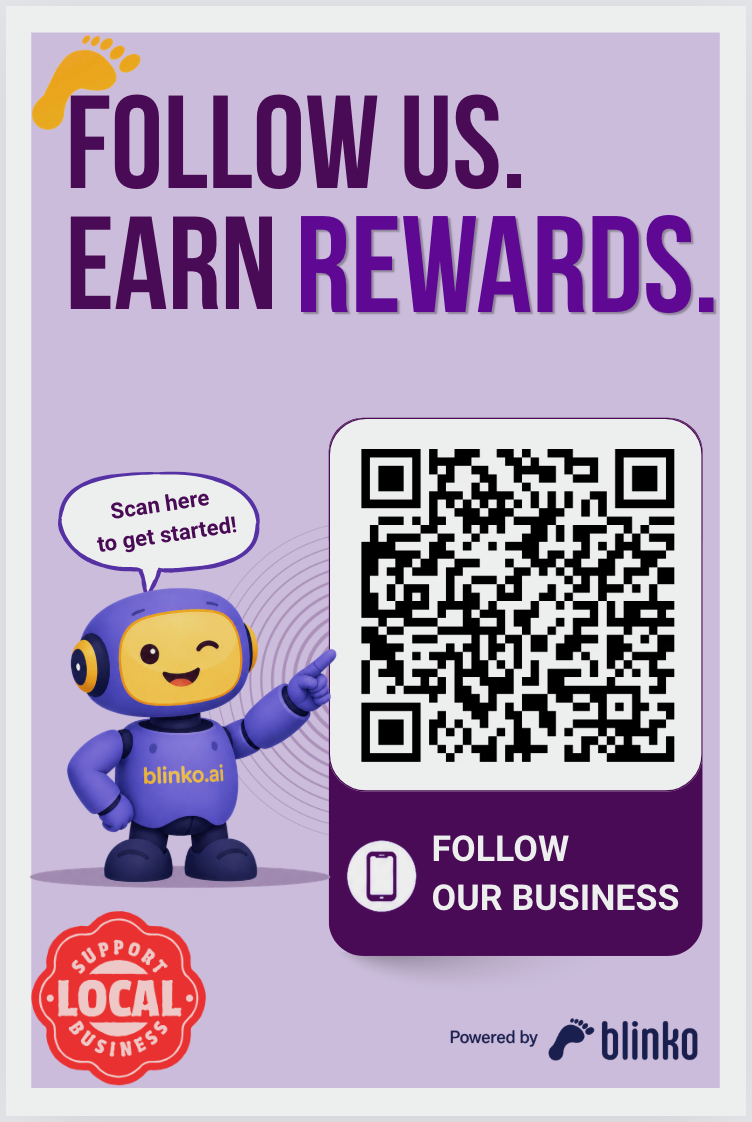
5 × 7 inches
6 × 9 inches
Step 4 — Download your file
Click the Download button for the size you want. You'll get a high-resolution PNG file, print-ready at 300 DPI, sized exactly to the dimensions shown.
Tip: Save the file somewhere easy to find — your Desktop or a dedicated "Blinko" folder. You'll need to attach it when you contact your print shop.
Step 5 — Send it to a local print shop
Your file is ready to print as-is. Don't resize it, reformat it, or edit anything.
The next step is getting it printed as a vinyl sticker — waterproof, UV-resistant, and built to last at your business location for years. Our full guide covers where to find a print shop near you, exactly what to ask for, and a ready-to-send email template:
👉 Where to Get Your Blinko Sticker Printed (and What to Tell Them)
Step 6 — Scan the QR code yourself first
Before you place the sticker anywhere, scan it with your own phone. It does two things at once: it confirms the QR code works, and it gives you the exact experience your customers will have.
What happens the first time you scan
Point your phone's camera at the QR code. On most phones, a notification or banner appears. Tap it. If it's your first time, your phone takes you to the App Store or Google Play to download the Blinko Spots app.
Download and install the Blinko Spots app — it's free for customers.
The Blinko Spots app is the consumer side of Blinko. It's what your customers use to follow businesses, collect stamps, and redeem rewards. As a business owner, having it installed lets you see exactly what your customers see.
After installing Blinko Spots — scan again
Once the app's installed, open it and scan the QR code again (or tap the link from your camera). This time you'll land directly on your business profile inside the app.
Here's what you'll see, and what your customers will see:
- Your business name, category, and location — pulled automatically from your Google Places listing
- Your active campaigns — every stamp card, welcome offer, and discount coupon you've published appears here, ready to be tapped
- A "Follow" button — tapping it enrolls you (or any customer) as a customer and triggers your Welcome Offer if you've got one active
- Rewards and progress — if you tap Follow and have a stamp card running, you'll see your stamp card with one stamp already earned from this visit
Why this matters
Scanning your own QR code is the fastest way to confirm everything's working — campaigns are live, the welcome offer fires, stamps count correctly. But it also gives you something more valuable: you'll see your business the way a first-time customer sees it.
If your campaigns look compelling and clear, a real customer will feel the same. If something looks off (a confusing campaign description, a reward that doesn't feel worth it) you'll catch it before your customers do.
Pro tip: Ask a staff member to scan and follow your business too. Have them go through the stamp card flow a few times so they can answer customer questions with confidence: "Yes, I've tried it. Here's how it works."
Where to place your sticker
Placement matters. The best spots are wherever customers naturally pause:
- Entrance door — eye level, visible from outside
- Counter or register — right where the transaction happens
- Tables — ideal for restaurants and cafes
- Menu — printed or physical
- Window — draws walk-by traffic
More visibility means more check-ins, so spreading the sticker across several of these spots does more for enrollment than perfecting the placement of a single one.
Frequently asked questions
Can I print the sticker at home? Yes, a high-quality inkjet or laser printer on glossy photo paper works for a temporary setup. For long-term placement (especially near doors and windows), vinyl from a print shop is strongly recommended. It's waterproof, UV-resistant, and won't curl or fade.
Can I use the sticker outdoors? Yes, as long as you request weatherproof vinyl with UV laminate from your print shop. Standard vinyl without laminate will fade in direct sunlight within a few months.
My QR code looks pixelated when I zoom in — is that normal? Yes. QR codes can look pixelated on screen at extreme zoom. They'll print sharply at 300 DPI. Always test-scan the printed sticker before placing it permanently.
Do I need to re-download the file if I change my campaigns? No. The QR code points to your business profile, not to any specific campaign. It stays valid regardless of what campaigns you run or change.
Ready to turn walk-ins into repeat customers?
Join hundreds of local businesses using Blinko to build lasting loyalty — no apps, no friction.
Get Started Freearrow_forwardBlinko Team
The Blinko Local team helps small businesses grow with smart loyalty tools and local marketing strategies.